Export your complete XTB history — every account, all the way back — and bring it into FolioCenter. XTB generates a single report file (a .zip) that already contains all the accounts you select, so you generate it once and hand the file to FolioCenter. No unzipping or renaming needed.
One file, all accounts. When you create the report, XTB lets you choose which accounts to include and bundles them into a single download — there’s no need to export or import accounts separately. Re-importing the same file later is safe; anything already imported is skipped.
Part 1 · Generate your history report
In xStation 5
Sign in to xStation 5 (web at xstation5.xtb.com or the desktop app).
Open the Account history tab.
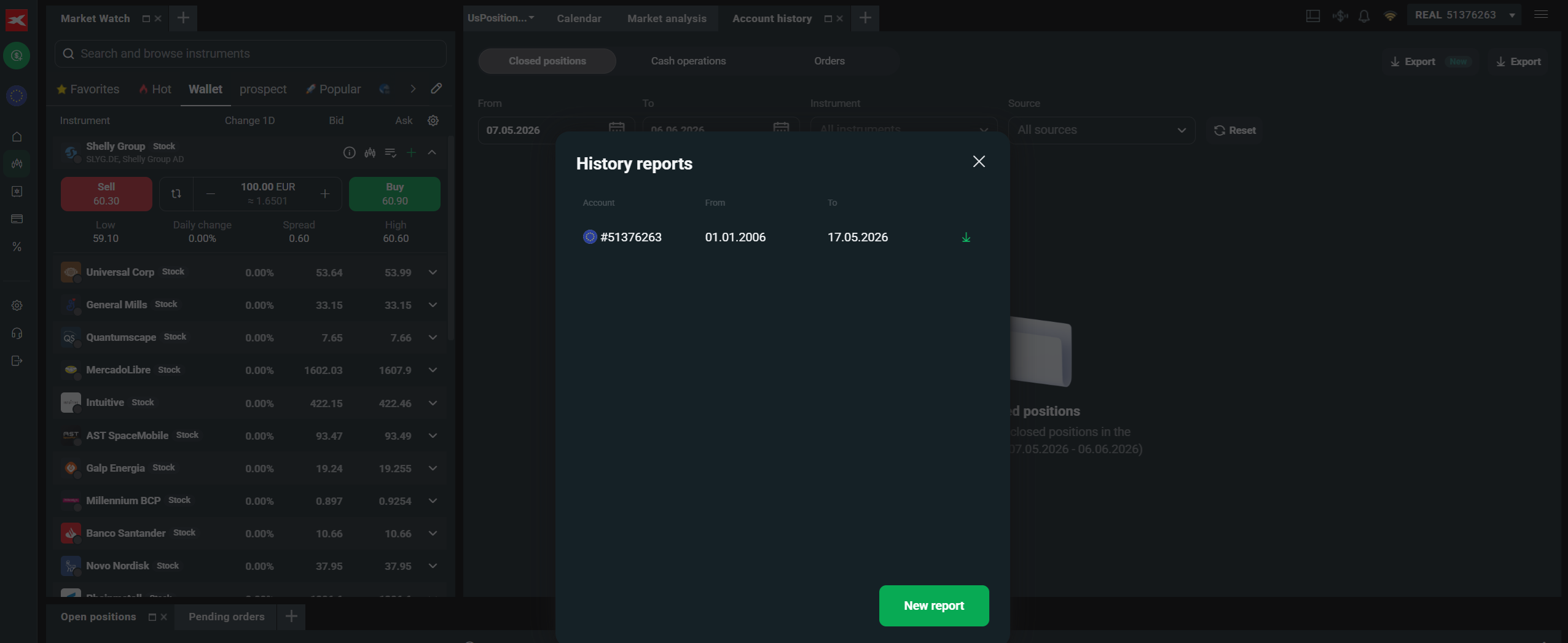
Click Export at the top-right (the button tagged New). The History reports window opens.
Click New report.
Select the accounts to include — pick all of them for a complete export — and set the date range to cover everything: From your earliest start (XTB goes back as far as 01.01.2006) and To today. Confirm to generate it.
When the report appears in the list, click the download icon to save the file. That one file contains every account you selected — exactly what FolioCenter needs.
xStation 5 → Account history → Export. In History reports, click New report, pick your accounts and the date range, then click the download icon.
Part 2 · Import into FolioCenter
In FolioCenter
Open the fund switcher (top-left) and choose Import Fund.
Select XTB, drop in the file you downloaded from XTB, and confirm.
FolioCenter reads every account — trades, dividends, interest, fees, CFDs and corporate actions — and skips anything already imported.