Track RSU grants
Restricted stock units are part of how many people are paid — and often their biggest single holding. FolioCenter tracks every grant from award to vest, so you always know what’s yours, what’s coming, and what it’s worth.
Why track RSUs in FolioCenter
- Your whole compensation in view — vested shares and the units still to come, valued at today’s price.
- Returns that stay honest — unvested units never inflate your performance figures.
- Ready for tax season — every vest recorded with its taxable value and the shares sold to cover it.
How an RSU grant works
An employer grants you a number of units that turn into shares over time. They vest on a schedule — commonly four years with a one-year cliff, then every quarter. Until a unit vests it is a promise, not an asset: leave the company and unvested units are usually forfeited.
At each vest the shares’ market value is taxed as employment income, and that value becomes your cost basis. Employers handle the tax in one of a few ways: sell to cover (some shares are sold to pay it), net settlement (fewer shares are delivered), or cash (you pay it separately).
Value and performance
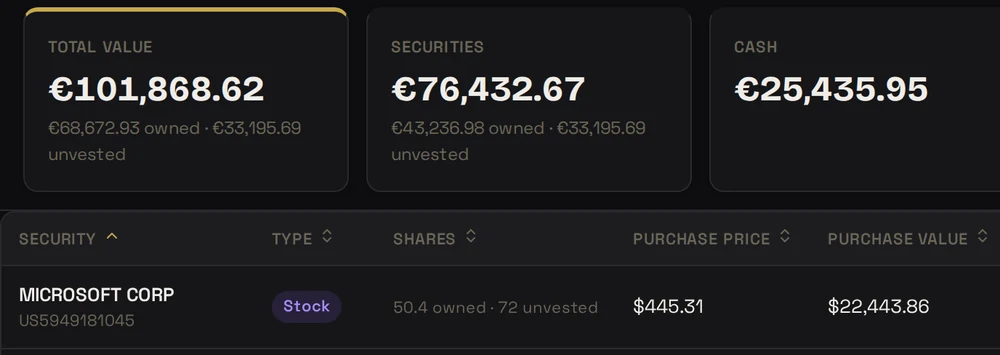
Unvested units are part of what you are worth on paper, so FolioCenter counts them in your value: the Statement of Assets, allocation and currency exposure all include them, and always say how much is owned and how much is unvested.
Your performance is a different question. TWROR, IRR, closed trades and per-security returns use owned shares only. Unvested units cost you nothing, so counting them would make every return look extraordinary — and a vest is income from your employer, not investment performance. It enters your portfolio as a contribution at its market value, and from that day on what the shares do is your return.
Record a grant
- Open RSU Grants and choose New Grant.
- Pick the security and the securities account the shares will land in, plus the cash account for any sale or tax.
- Enter the grant date and total units, then the cliff, vest interval and number of tranches. The schedule preview fills in as you type.
- Choose the settlement mode and withholding rate your employer uses, and add their grant reference if you have one.
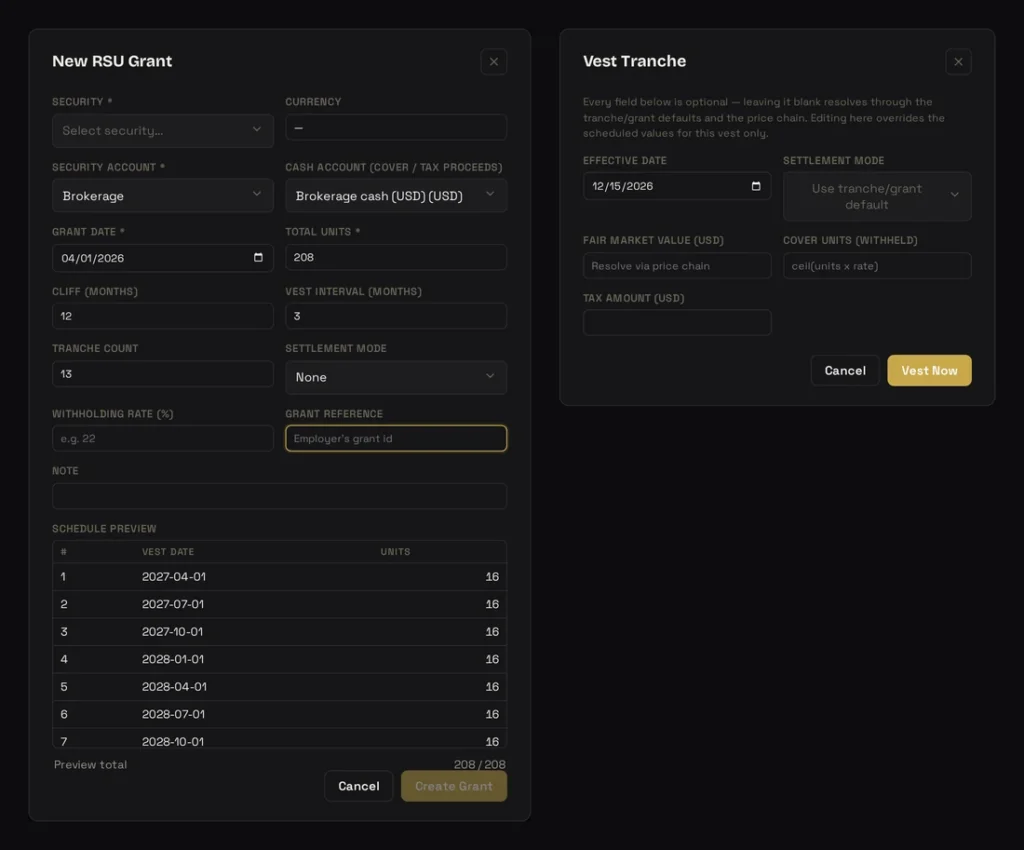
Match your plan exactly. The generator splits units evenly across tranches. If your plan releases 25% at the cliff, open Edit tranches afterwards and adjust them — tranches are fully editable.
Vesting
Each tranche has a Vest now button. FolioCenter takes the fair market value from the price on the vest date, works out the units withheld (the tranche’s units times your withholding rate, rounded up), and books the result according to the settlement mode — the shares delivered, any shares sold to cover, and the tax. Each figure can be overridden in the dialog to match your payslip.
With FolioCenter Plus, tranches vest automatically on the night they come due. Automatic and manual vesting produce exactly the same transactions — Plus saves you the clicks, it doesn’t change the answer.
The vesting calendar
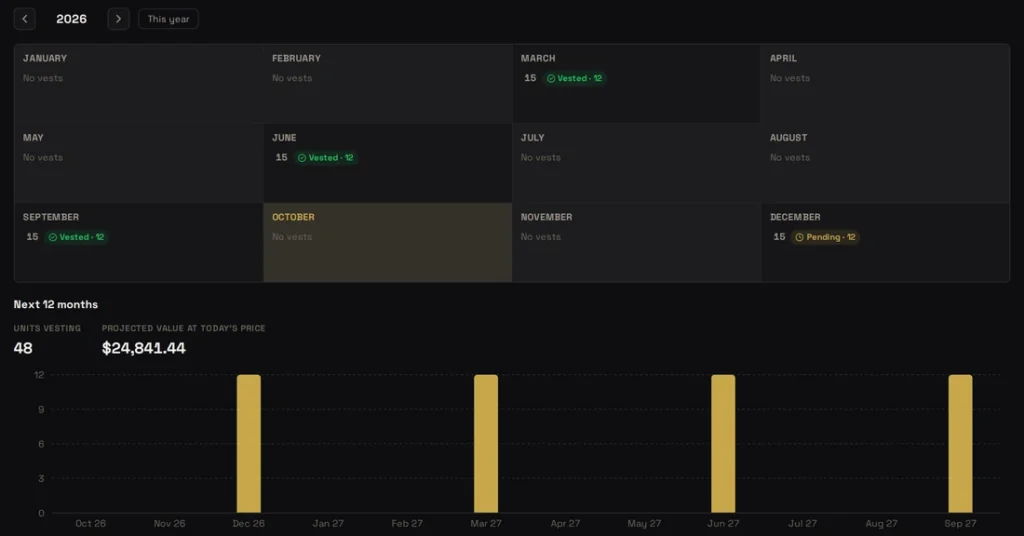
The calendar shows a year at a time, with every vest date and the gaps between them, and below it the next twelve months: how many units vest and roughly what they are worth at today’s price. It is the quickest way to see when cash for a tax bill, or a decision about selling, is coming.
Leaving, clawbacks and dividend equivalents
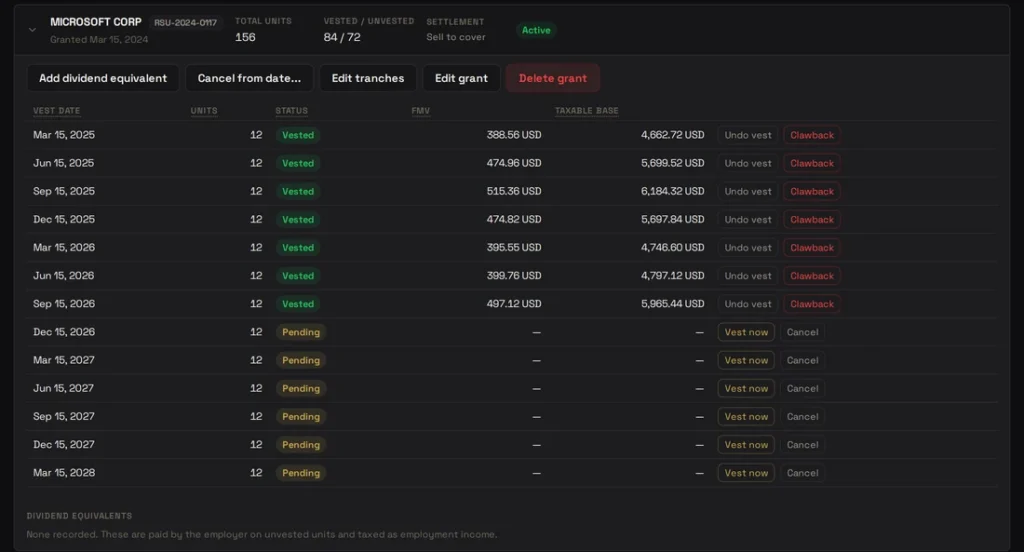
- Cancellation — leaving the company forfeits unvested units. Use Cancel from date; nothing is booked, because they were never yours.
- Clawback — an employer taking back shares that already vested. The shares leave with no proceeds, and the original vest figures are kept, because that income was already taxed.
- Dividend equivalents — cash some employers pay on unvested units. Record it on the grant; it is taxed as employment income rather than as a dividend, and kept out of the holding’s dividend yield.
Pre-IPO employers
If your employer isn’t listed yet, create it as a private security. Only you can see it, and you value it with manual prices — a 409A valuation or the last funding round. When the company lists, open the private security and choose Company has IPO’d…. FolioCenter moves your transactions, positions, grants, plans, watchlist entries and taxonomy assignments onto the listed security, carries over your manual price history, and applies a conversion ratio if one is needed.
Common questions
A vest needs a price for that date. If there isn’t one yet — a holiday, or a private security without a manual price — the tranche waits and retries; it is never skipped. You can also vest it by hand with a fair market value of your own.
Create an investment plan of type RSU Grant and FolioCenter generates each refresher grant on schedule. Creating a grant plan needs Plus; pausing or deleting one is always free.
Use Undo vest. It removes the transactions that vest created and returns the tranche to pending. A clawback is for something that really happened later.
Because they are part of what you are worth on paper, and leaving them out would hide your concentration in one company. Use the Incl. unvested toggle on charts to compare both views.
Know what your equity is really worth
Add your grants and see every vest, every tax figure and your true returns — all in one place.
Start free →Already have an account? Sign in
Grants, manual vesting in every settlement mode, clawbacks, dividend equivalents, private securities and IPO migration are available on every plan; automatic vesting, the vesting calendar and RSU grant plans come with Plus. Tax treatment varies by country — this guide is about using the app and isn’t tax or investment advice.