Manually register an option
FolioCenter has a dedicated Option mode in the Add Transaction dialog, separate from CFDs, that captures strike, expiry, call/put and premium. This guide walks the full lifecycle from opening a contract to its terminal event.
When to use this
Use this flow to book an exchange-traded option by hand — a call or put you bought or wrote — rather than importing it from a broker statement. It records the identity of the contract (underlying, strike, expiry, right), the premium you paid or received, and how the position eventually ends: closed by trade, expired, exercised or assigned.
Options get their own form because they carry fields a plain CFD does not (strike, expiry, call/put), their price is a premium per contract rather than a quote, and they can end in a terminal event — expiry, exercise or assignment — not just a closing trade. If you are recording a contract-for-difference instead, use the CFD Trade flow.
The option’s underlying instrument must already exist in your securities catalog. If it does not, create it first via Add Security (search by name, ISIN or ticker, pick the exchange/listing, then Add Security). For exercise or assignment you will separately pick the underlying to be delivered, so it must be findable in search.
Open the option position
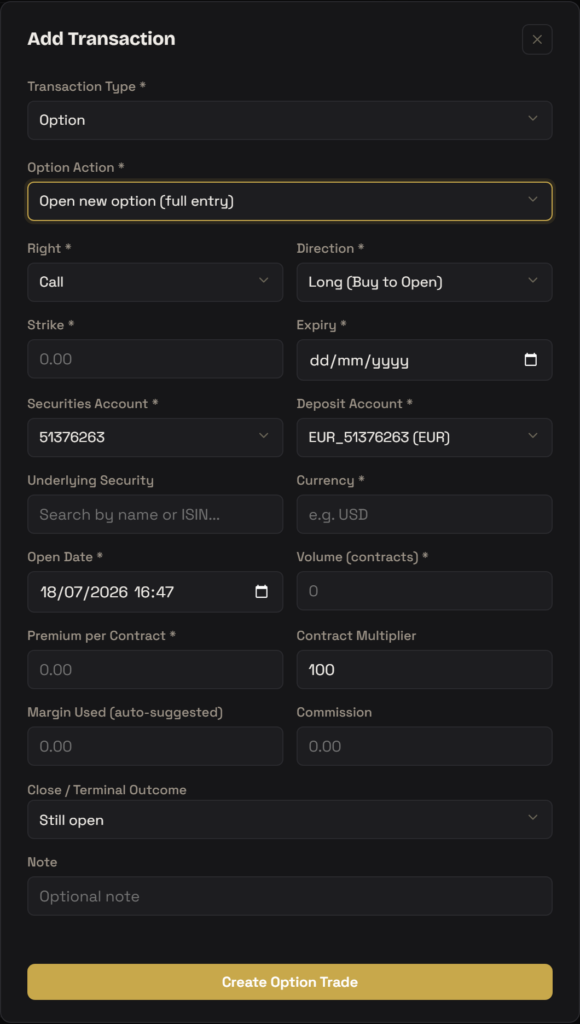
Open Add Transaction, set Transaction Type to Option, then set Option Action to Open new option (full entry). This reveals the option trade form. Fill it top to bottom:
- Right — choose Call or Put. The right, combined with your direction, determines which way the underlying moves on exercise or assignment.
- Direction — Long (Buy to Open) if you bought the contract and paid premium, or Short (Sell to Open) if you wrote it and received premium.
- Strike — the exercise price per unit of the underlying (e.g.
150). Required and must be greater than zero. - Expiry — the contract’s expiration date.
- Securities Account — the portfolio the position belongs to. Deposit Account — the cash account the premium and commission settle against; it auto-fills from the portfolio’s reference account but can be changed.
- Underlying Security — search by name or ISIN and select the instrument the option is on. Selecting it sets the Currency automatically; you can still edit the 3-letter currency code (e.g.
USD) if needed. - Open Date — the date and time the position was opened (defaults to now).
- Volume (contracts) — the number of contracts (e.g.
5). - Premium per Contract — the premium price per contract, e.g.
3.25. This is the option’s “price”, not the underlying’s quote. - Contract Multiplier — units of underlying per contract, defaulting to 100. Total exposure is premium × volume × multiplier.
- Margin Used — auto-suggested (long = premium at risk; short = strike × volume × multiplier as a proxy) and editable. Commission — optional broker fee.
- Leave Close / Terminal Outcome on Still open for a plain open, then submit with Create Option Trade.
You can also record the whole life of the trade in one pass: set Close / Terminal Outcome to a value other than Still open and the closing fields appear inline (covered in the next section). Otherwise a single open leg is booked and the position stays open until you add a closing event later.
There are deliberately no leverage, notional, swap or dividend fields here — options don’t finance a position or pay the holder, so those CFD concepts don’t apply.
Closing, exercise, assignment or expiry
An open option ends in one of four ways. You can record the outcome either inline on the open form (Close / Terminal Outcome) when booking history in one go, or separately later: Add Transaction → Type = Option → Action = Close / Terminal event, which opens the close-leg form. There you pick the Option Trade Group (an existing open option position), an Outcome, and the relevant date, then submit with Add Close / Terminal Event.
- Closed by trade — you sold the long (or bought back the short) before expiry. Enter Close Price (the closing premium per contract) and Close Date. Realized P&L is the premium difference: (close − open) × volume × multiplier, sign-flipped for shorts.
- Expired worthless — the contract lapsed with no value. Enter only the Event Date; the position is closed at price 0, so a long keeps its full premium as a loss and a short keeps the premium received as a gain. No underlying is delivered.
- Exercised (long) — you exercised a long contract. Enter the Event Date and pick the Underlying Security (for delivery). FolioCenter shows a read-only Derived delivery preview — side, quantity (volume × multiplier) and price (the strike).
- Assigned (short) — your short contract was assigned. Same inputs as exercise: Event Date plus the underlying to deliver, with the derived delivery preview.
On exercise or assignment, delivery side is derived from right × direction: long call / short put → BUY the underlying; long put / short call → SELL. FolioCenter books the resulting equity trade at the strike automatically — you do not create it separately.
How FolioCenter models an option
- Premium cash flow — opening a long debits the deposit account by premium × volume × multiplier (plus commission); writing a short credits it. The premium is the position’s cost basis, not the strike.
- Trade group — the open leg and its close/terminal leg share one identifier and aggregate into a single trade row. Editing the open leg edits the whole group.
- Realized P&L — computed server-side from the open and close premiums (the form’s estimate is a preview only). Terminal events set the outcome status (EXPIRED / EXERCISED / ASSIGNED) and the corresponding realized result.
- Valuation — while open, the position values off the option’s own premium/price; margin (auto-suggested, editable) tracks capital at risk. Realized P&L stays null until a closing or terminal leg exists.
- Exercise/assignment delivery — the auto-created equity BUY/SELL at strike shares the option’s trade group, so the intrinsic value lands once in the equity sleeve (cost basis at strike) while the option sleeve keeps the premium P&L. That delivery is derived and owned by the group — to change it, delete the option group and rebook.
Troubleshooting
Currency is populated when you select the Underlying Security — the form takes it from the security’s primary listing. If you typed a currency but never picked a security, select the underlying from search (or enter a valid 3-letter code such as USD). The form blocks submit with “Currency is required — select a security first” until it is set.
Older option legs imported before the dedicated Option mode reused the CFD pipeline and could lose their option fields when edited through the CFD form. Edit them through the Option form so strike, expiry and right survive the round-trip. Re-enter those fields once if they were already blanked.
Exercise and assignment must book a stock delivery, so an underlying is mandatory. Search and select it in the Underlying Security (for delivery) picker. If the instrument isn’t in the catalog yet, add it via Add Security first. For a cash-settled or index option with no deliverable, use Expired worthless or Closed by trade instead.
The close/terminal form only lists positions that are currently open options. If yours isn’t there, it may already be closed, or it may have been booked as a CFD rather than an option. Open a new option first, or record the close inline on the open form via the Close / Terminal Outcome selector.
Field labels and behaviour described here reflect the current option trade forms. Exercise/assignment assumes a physically-settled option on the named underlying; cash-settled and index options are not fully modelled — use Expired worthless or Closed by trade for those. This is product guidance, not investment or tax advice.