Import from Kraken
Your Kraken trades, Earn rewards and transfers — imported from the reports Kraken already gives you, and valued alongside the rest of your portfolio.
Why bring Kraken into FolioCenter
- Staking that finally counts — every Earn reward valued on the day you received it, and counted in your returns.
- One coin, one holding — what you hold across Spot and Earn shows as a single position, the way you think about it.
- Nothing to connect — no API keys, no login — just the reports you download.
Before you start
You’ll need Kraken’s Ledgers export — the report that holds your full history. Trades and Balances are optional extras that FolioCenter uses to double-check the result.
Export as PDF, not CSV. Upload the .zip just as Kraken delivers it, or the PDF inside it.
Export your reports from Kraken
- Sign in to Kraken, open the profile menu at the top right and choose Documents.
- In the Exports section, select Create Export.
- Create a Ledgers export: set the start and end dates to cover your whole history, choose PDF, and create it.
- Optionally repeat for Trades and for Balances (Balances asks for a single date, not a range).
- Processing takes anywhere from a few minutes to a week. When the download icon lights up, download each report — they stay available for 14 days.
Keep the file names exactly as Kraken delivers them — that’s how FolioCenter knows which report is which.
Import into FolioCenter
- Start a new import and choose the Kraken card.
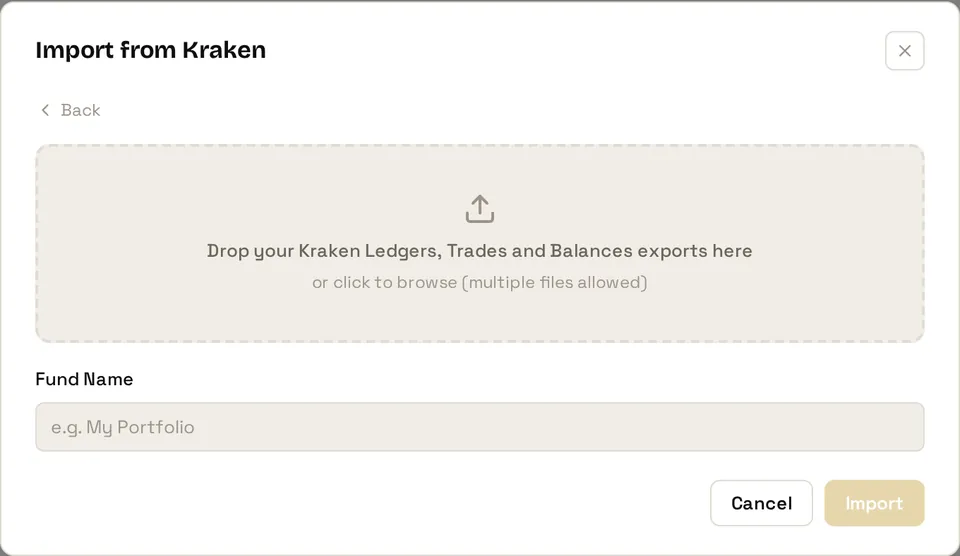
- Drop in your Ledgers export (required), plus Trades and Balances if you exported them.
- Give the fund a name.
- Confirm the base currency.
- Import. You’ll get a summary of the portfolios, accounts and transactions created.
Already track this account in FolioCenter? Choose add to an existing fund and drop in a newer ledger. Anything you’ve imported before is recognised, so nothing is ever counted twice.
What gets imported
- Spot buys and sells, fees included
- Coin-to-coin trades
- Deposits, withdrawals and transfers
- Staking and Earn rewards, valued on the day you received them
- Moves between Spot and Earn, kept as the same holding rather than a sale
After importing
Coins with no market-data feed are flagged on the import summary with an Add prices button — see Import a manual price history to value them.
A coin you hold across Kraken’s Spot and Earn wallets shows up as one holding — because it’s one investment, wherever Kraken keeps it.
Common questions
The Ledgers export holds your transactions, so every import needs it; Trades and Balances are optional. If you’ve uploaded it, check its file name hasn’t been changed.
FolioCenter reads Kraken’s PDF reports. Go back to Documents → Exports and create the export again with PDF selected.
Margin trading and Kraken’s stocks portfolio aren’t supported yet. Rather than give you numbers that look right but aren’t, FolioCenter stops and tells you. Let us know at support@foliocenter.com if you need them — it helps us decide what comes next.
Yes. Anything you’ve already imported is recognised and skipped, so only genuinely new transactions are added — nothing is ever counted twice.
Your Kraken coins, rewards and all — in one portfolio
Import your Kraken history and see your staking income and real returns next to everything else you own.
Start free →Already have an account? Sign in
Kraken is an independent company and isn’t affiliated with FolioCenter. You export your own data; FolioCenter only reads the files you upload. This guide isn’t investment advice.