Import from eToro
Shares, crypto, CFDs and copied trades from your eToro account — imported from its yearly statements and measured properly, next to your other brokers.
Why bring eToro into FolioCenter
- Copied trades included — positions from CopyTrader arrive as real trades with their real profit and loss.
- Costs counted — CFD overnight financing and spreads are included, so your returns reflect what you actually paid.
- Every source of income — dividends, staking and airdrops, all in one place.
Before you start
You’ll need eToro’s Account Statement — an Excel workbook, one per year. FolioCenter rebuilds your positions, CFDs, cash and income from it.
Excel is the only format eToro offers for this report. Export each year you’ve traded and upload them all together.
Export the Account Statement from eToro
- Sign in to eToro on the web.
- Open Portfolio → History, then the button at the top right, and choose Account Statement. (Depending on your account you may instead find it under Settings → Account → Documents.)
- Set the date range to one calendar year.
- Select Create to generate the statement.
- Download it with the XLS icon at the top right, and repeat for every year you’ve been trading.
Export a year at a time. eToro will happily generate a longer range, but per-year workbooks stay small, match how eToro numbers them, and make it obvious at a glance if a year is missing from your upload.
Import into FolioCenter
- Start a new import and choose the eToro card.
- Drop all of your yearly workbooks into the drop zone at once.
- Give the fund a name.
- Confirm the base currency — eToro accounts are usually denominated in USD.
- Import. You’ll get a summary of the portfolios, accounts and transactions created.
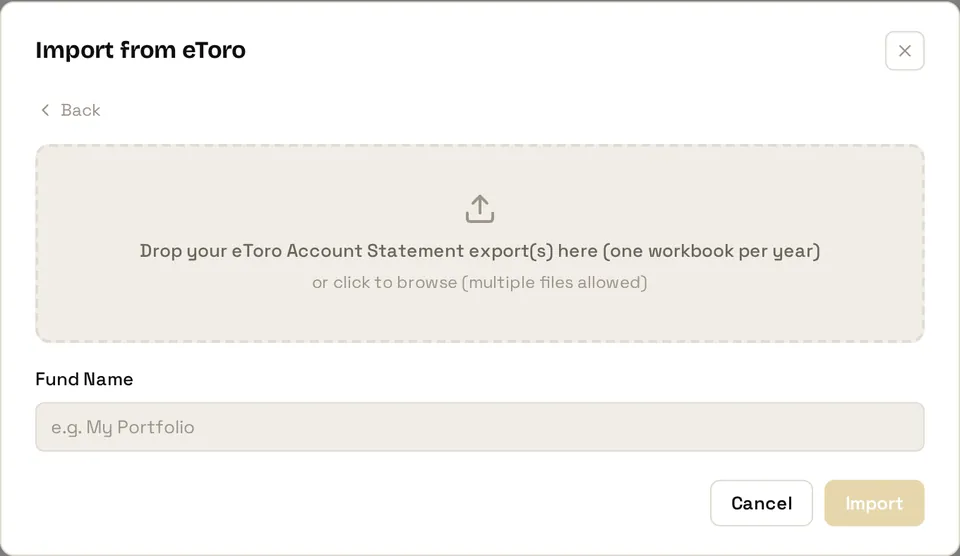
Already track this account in FolioCenter? Choose add to an existing fund and drop in the newer year. Anything you’ve imported before is recognised, so nothing is ever counted twice.
What gets imported
- Buys and sells of shares and crypto
- CFD positions, with their overnight financing and spread costs
- Dividends, on both shares and CFDs
- Staking and AirDrop rewards
- Deposits, withdrawals and account adjustments
- Stock splits, in both directions
After importing
Trades you copied with CopyTrader arrive as real trades with their real profit and loss, and count in your returns like any other.
Holdings with no market-data feed are flagged on the import summary with an Add prices button — see Import a manual price history to value them.
Common questions
Closed CFD positions are imported today. A CFD you still hold will appear once you’ve closed it and imported the year it closed in.
eToro keeps copied positions out of the cash balance on your statement, and FolioCenter does the same. The trades and their profit and loss are all there — the cash simply sits with your CopyTrader allocation.
FolioCenter uses your account’s own currency, exactly as your statement’s main totals do, and ignores eToro’s convenience conversion beside it.
Yes. Anything you’ve already imported is recognised and skipped, so only genuinely new transactions are added — nothing is ever counted twice.
Your eToro account, finally measured properly
Import your statements and see shares, crypto, CFDs and copied trades — with real returns — next to your other brokers.
Start free →Already have an account? Sign in
eToro is an independent company and isn’t affiliated with FolioCenter. You export your own data; FolioCenter only reads the files you upload. This guide isn’t investment advice. CFDs are complex instruments and carry a high risk of losing money rapidly through leverage.