Import from Coinbase
Every buy, convert and staking reward from your Coinbase account — in FolioCenter in minutes, and valued alongside everything else you own.
Why bring Coinbase into FolioCenter
- One view of your wealth — your crypto next to your stocks, funds and cash, in your own currency.
- Returns you can trust — true time-weighted and money-weighted returns, with staking rewards counted as income.
- Nothing to connect — you upload a file you downloaded yourself. FolioCenter never asks for your Coinbase login.
Before you start
You’ll need Coinbase’s transaction history export, found under Statements. Coinbase writes one file per calendar year, so a full history is a few files — FolioCenter rebuilds your trades, transfers, rewards and cash from them.
CSV and PDF both work. Pick one format and use it for every year — FolioCenter checks your files before anything is imported, so nothing is ever half-done.
Export the transaction history from Coinbase
- Sign in to Coinbase on the web — the mobile app doesn’t offer the full export.
- Open Account → Statements.
- Choose the transaction history report, set the date range to one full calendar year, and pick CSV (or PDF).
- Generate the statement, then download it.
- Repeat for every year your account has been open.
Download every year, including quiet ones. A missing year makes a coin look like it was sold before it was ever bought — FolioCenter checks for gaps and warns you before importing rather than after.
Import into FolioCenter
- Start a new import and choose the Coinbase card.
- Drop all of your yearly exports into the drop zone at once — the card takes many files.
- Give the fund a name.
- Confirm the base currency.
- Import. You’ll get a summary of the portfolios, accounts and transactions created.
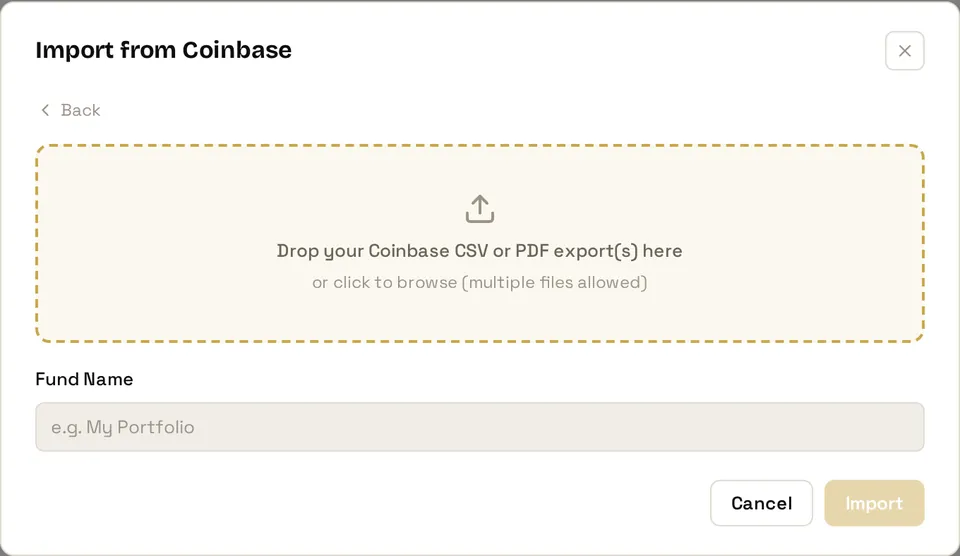
Already track this account in FolioCenter? Choose add to an existing fund and drop in the newer year. Anything you’ve imported before is recognised, so nothing is ever counted twice.
What gets imported
- Buys and sells — on Coinbase and Advanced Trade, fees included
- Converts and stablecoin swaps
- Deposits and withdrawals
- Staking and rewards, counted as income
- Transfers between your wallets
After importing
Coins with no market-data feed are flagged on the import summary with an Add prices button — see Import a manual price history to value them.
Missed a year? The import summary tells you. Export it from Coinbase and add it to the same fund — FolioCenter fills the gap.
Common questions
That is a gap in the files you uploaded, not an error in your account. Coinbase exports one calendar year per file; if a year is absent, disposals in later years have nothing to sell. Export the missing year and add it to the same fund.
Use one format per account — every year as CSV, or every year as PDF. FolioCenter checks before importing, so nothing is half-imported.
FolioCenter remembers which format a fund came from and stops you mixing them, because CSV and PDF describe the same transactions and would count them twice. Keep using the format you started with.
Coinbase labels every price in USD, whatever you actually paid in. FolioCenter works out the currency you really used, so a trade in euros arrives in euros.
Yes. Anything you’ve already imported is recognised and skipped, so only genuinely new transactions are added — nothing is ever counted twice.
See your crypto next to everything else you own
Import your Coinbase history and get true returns — staking included — alongside your stocks, funds and cash.
Start free →Already have an account? Sign in
Coinbase is an independent company and isn’t affiliated with FolioCenter. You export your own data; FolioCenter only reads the files you upload. This guide isn’t investment advice.