Manually register a CFD
A CFD in FolioCenter is a trade group: you open the position now and later attach financing, dividend and closing legs that all settle into the same cash account. Use manual entry when you don’t have a broker file to import.
When to use this
A Contract for Difference (CFD) is stored as a trade group — one opening leg plus any number of financing, dividend and closing legs that all share a single trade key. You open the position once, then add the other legs on the dates they actually happen. Every leg books cash into the same Deposit Account, but the margin itself is never moved out of your balance.
Use this manual flow when you don’t have a broker statement to import (FolioCenter imports CFDs automatically from XTB, IBKR Flex, Trading 212 and others). If you do have a file, import it instead — it reconstructs the same trade groups for you.
- Open now, complete later — you can register just the opening leg and add financing, dividends or the close whenever they occur.
- One trade group — all legs are linked, so P&L, financing and dividends roll up into a single position.
- Margin stays put — only commission, financing, dividends and realized P&L move cash; the margin remains in your account balance.
Open the CFD position
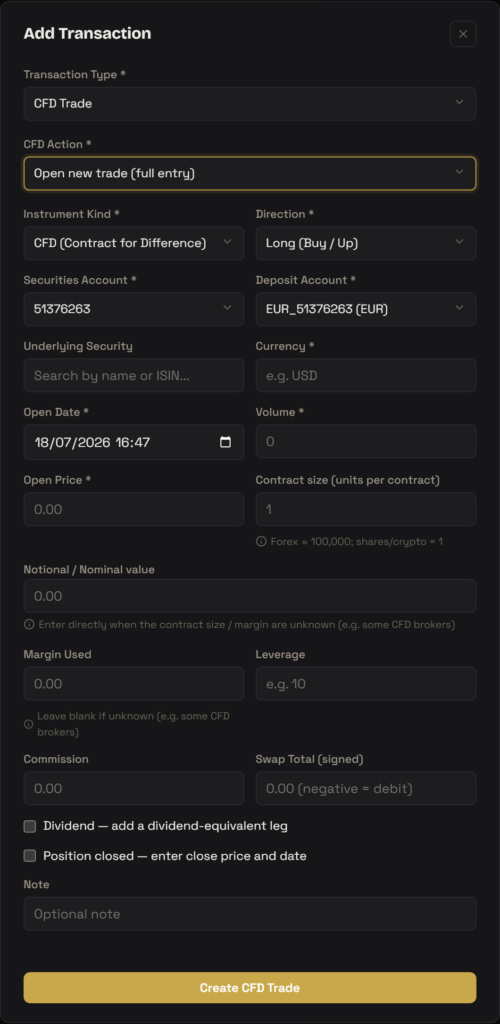
Open Add Transaction, set Transaction Type to CFD Trade, then set CFD Action to Open new trade (full entry). This reveals the full CFD open form. Work through the fields:
- Instrument Kind — fixed to CFD (Contract for Difference).
- Direction — choose Long (Buy / Up) or Short (Sell / Down). This sets the sign of your P&L: a long gains when the price rises, a short when it falls.
- Securities Account and Deposit Account — the portfolio the position belongs to and the cash account that funds it. If your portfolio has a reference account, the deposit account is filled in for you.
- Underlying Security — search by name or ISIN and pick the underlying. This is optional but recommended; selecting it auto-fills the Currency. If the underlying isn’t in the catalogue yet, create it first (see the note below).
- Currency — the trade’s currency (e.g.
USD). Required; auto-filled from the selected security, or type a 3-letter code. - Open Date — date and time the position was opened (defaults to now).
- Volume — the number of units / contracts. Required and must be greater than zero.
- Open Price — the price per unit at which the position opened. Required.
- Contract size (units per contract) — units each contract represents. Leave blank (treated as 1) for shares and crypto; use ≈100,000 for forex.
- Notional / Nominal value — optional. Enter the position’s face value directly when the contract size and margin are unknown (some CFD brokers only report notional).
- Margin Used and Leverage — optional. Enter what your broker reports; leave blank if unknown. FolioCenter shows a live Notional ≈ preview and warns if margin × leverage disagrees with the other inputs by more than 5%.
- Commission — the opening commission, entered as a positive number. It books as a cash cost on the open date.
- Swap Total (signed) — optional shortcut to record all financing as one figure (negative = debit) instead of dated financing legs.
FolioCenter derives the position’s notional from a priority chain: an explicit Notional / Nominal value wins, then Open Price × Volume × Contract size, then Margin × Leverage. Fill in whichever your broker actually reports — you don’t need all of them.
The open form also offers inline Dividend and Position closed checkboxes, so if you already know the close price or a dividend, you can enter them here in one go instead of adding separate legs later. Click Create CFD Trade to save.
If the underlying isn’t in the catalogue, open Add Security first: search by name/ISIN/ticker, pick the exchange, confirm the name, currency and type, then Add Security. If nothing matches, use Empty Instrument to enter it by hand. Then return to the CFD form and search for it.
Financing, dividends and closing
To add a leg to an existing open position, choose CFD Trade again and pick the matching CFD Action. Each of these opens a leg form where you first select the open Trade Group (listed by direction, security and open date), then enter the leg’s Date and its value:
- Financing (swap) — books a
SWAPleg for overnight financing. Enter a signed Amount: positive = a financing credit, negative = a financing cost. - Dividend — books a
DERIVATIVE_DIVIDENDleg dated on the underlying’s ex-date. Enter a signed Amount (typically positive for a long, negative for a short) plus an optional Dividend Tax, which is stored as a withholding portion. - Close a trade — books the
DERIVATIVE_CLOSEleg. Enter the Close Price and date; FolioCenter computes the realized P&L from open vs. close, direction, volume and contract size.
Financing and dividend amounts are signed — a leading minus sign means cash leaving the account. Entering a financing cost as a positive number will credit your account instead of debiting it.
How FolioCenter models a CFD
- Commission is the opening cash cost — a positive amount that reduces the balance on the open date.
- Financing (swap), dividends and the close are booked as signed cash: positive flows in, negative flows out. The close leg’s amount is the realized P&L (positive = profit, negative = loss).
- Margin is not moved — it stays in your account balance. Recording margin and leverage only helps FolioCenter compute notional and return metrics; it doesn’t debit cash.
- Valuation basis — an open position is marked to market (return-on-notional is the broker-agnostic base; return-on-margin is shown when margin is known, otherwise it renders as “—”).
Troubleshooting
These legs require a non-zero signed Amount. Enter the cash value with the correct sign: negative for a cost/debit, positive for a credit/income. A blank or 0 amount is rejected.
Those legs attach to an existing open trade group, so you must create the opening leg first (CFD Action = Open new trade). Only positions that are still open appear in the Trade Group list — if you already closed it, reopen the trade to edit it instead of adding a new close.
This is a non-blocking coherence check: two of your inputs imply notionals more than 5% apart (e.g. Margin × Leverage vs. Open Price × Volume × Contract size). Re-check the figures against your broker statement. You can still save, but confirm which value is correct — FolioCenter prefers an explicit Notional, then contract size, then margin × leverage.
Currency is mandatory. Select an Underlying Security to auto-fill it, or type a 3-letter code (e.g. USD) into the Currency field manually.
FolioCenter is a portfolio-tracking tool, not a broker or advisor. Manually entered CFD trades are for record-keeping and reporting only — they place no orders and are not investment advice. Always reconcile against your broker’s own statements.