Manually register a bond
A bond in FolioCenter is a security you create once, then buy. This walks you through creating the bond instrument and recording a purchase by hand when a broker import isn’t available.
When to use this
Reach for manual entry when a bond isn’t in your broker import, when you hold it away from a connected broker, or when you want to backfill history. Import is still the faster path for anything your broker already sends.
Two steps, always in this order: first create the bond as a security (name, currency, type Bond, plus issuer/coupon/maturity), then record a Buy against it. The purchase form only switches into bond mode once the security’s type is Bond (or Bill), so the instrument must exist first.
Create the bond instrument
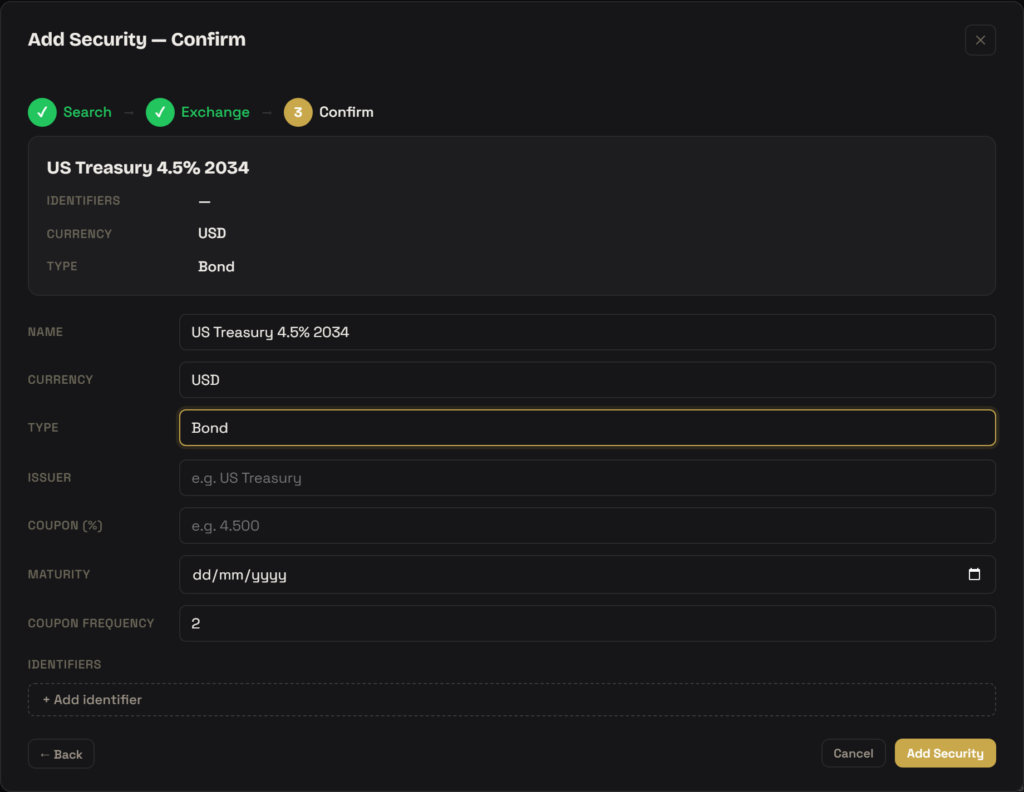
Open the Add Security dialog. It runs in three steps shown across the top: Search → Exchange → Confirm. If a data-provider match exists, search by name, ISIN, or ticker, pick it, and land on Confirm. For a bond that isn’t in any feed, click Empty Instrument at the bottom to jump straight to the Confirm step and fill everything by hand.
- On the Confirm step, set Name (e.g.
US Treasury 4.5% 2034) and Currency (e.g.USD). - In Type, enter
Bond(orBillfor a zero-coupon bill). This is what unlocks the bond fields below and puts the purchase form into bond mode later. - Fill the bond details that appear: Issuer (e.g.
US Treasury), Coupon (%) (the annual rate, e.g.4.500), and Maturity (a date). - Set Coupon frequency — payments per year, e.g.
2for semiannual. This field is hidden for aBill, which carries no coupon schedule. - Under Identifiers, add the bond’s
ISINand/orCUSIPwith the + Add identifier button — these are what let FolioCenter resolve and later price the bond. - Click Add Security.
Issuer, coupon, maturity, and coupon frequency are optional and are stored as descriptive properties on the security. Coupon must be a non-negative number, maturity a valid date, and coupon frequency a non-negative whole number, or the save is blocked with an inline message.
If you build a bond from scratch with Empty Instrument and you’re not an admin, it is created as pending — visible only to you until an admin approves it.
Record the purchase
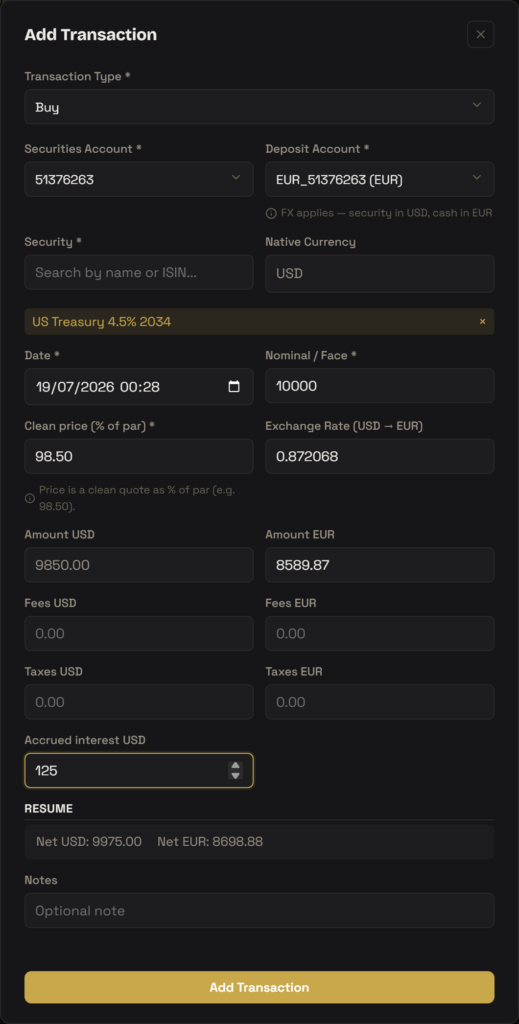
Open Add Transaction from the Transactions area, set Transaction Type to Buy, then search and select the bond you just created. The moment a bond is selected, two field labels change to reflect the bond convention and an accrued-interest field appears.
- Choose the Securities Account and Deposit Account. Native Currency fills in read-only from the security.
- Set the Date.
- In Nominal / Face (this replaces the usual Quantity label for bonds), enter the face amount you bought, e.g.
10000. - In Clean price (% of par) (this replaces Quote), enter the clean quote as a percentage of par, e.g.
98.50for 98.50% of face. The hint under the field confirms this basis. - Enter any Fees and Taxes.
- In Accrued interest, enter the coupon interest paid to the seller at settlement. On a Buy this is added to your cash outlay; on a Sell it’s received.
- If the bond’s currency differs from the deposit account, extra FX fields appear (Exchange Rate, amounts and fees/taxes in both currencies). Check the Resume line — Gross, Fees, Accrued, Net — then submit with Add Transaction.
- Nominal, not units. You type the face value; FolioCenter stores the position as nominal ÷ 100 internally, so a €10,000 face bought at 98.50 costs €9,850 before fees.
- Clean price only. Don’t add accrued interest into the price — enter it in its own field so the clean quote stays clean.
- Transaction Amount is read-only in the same-currency case and equals nominal ÷ 100 × clean price; fees, taxes, and accrued are then applied on top.
How FolioCenter models the bond position
Cost basis is built from the clean price (nominal ÷ 100 × % of par) plus fees and taxes, with accrued interest folded into the cash amount as its own line. Because accrued is tracked separately, editing a trade later reconstructs the original clean price exactly, and the positions view can show cost including accrued distinctly from the clean quote.
Valuation uses the same % of par basis — the positions screen labels the bond’s quote as a percentage of face value. Where no market quote exists, the coupon, maturity, and coupon-frequency you entered feed a model price provider so the bond can still be valued.
Recurring coupon receipts are not generated automatically. Record each coupon you receive as a separate Interest transaction against the deposit account. Only the accrued interest at purchase is captured on the Buy itself.
Troubleshooting
The form only switches to bond mode when the selected security’s Type is Bond or Bill. Reopen the security in Add Security and confirm the Type field, then reselect it in the Buy form.
The face (par) amount you hold, e.g. 10000 for a €10,000 bond. The price goes in Clean price (% of par) as a percentage like 98.50. Never multiply the two yourself; the Transaction Amount is computed for you.
In the dedicated Accrued interest field on the Buy form, in the security’s currency — not inside the price. It’s added to your cash cost on a Buy and kept as a separate line so the clean price is preserved.
A bond created via Empty Instrument by a non-admin is pending until an admin approves it. It’s fully usable in your own fund in the meantime.
Field labels and behaviour described here reflect the current app. FolioCenter is portfolio-tracking software, not investment or tax advice — figures such as accrued interest and cost basis are only as accurate as what you enter.