Import a manual price history
Value a holding that has no price feed by uploading a price history you export from a data provider — using Investing.com as a worked example.
When you need this
FolioCenter prices most of your holdings automatically. Now and then a security has no price feed — a delisted share, a thin small-cap, a fund your providers don’t track. You’ll spot these because the last price is just carried forward from your latest transaction, and a small $ button appears next to the holding: “Add manual prices (no market data for this security).”
For those, you can upload a price history yourself. Take the data from any provider — a stock exchange page, your broker’s export, or a market-data website. This guide uses Investing.com as one worked example; the same steps apply to any source that lists daily prices.
You’re proposing a price series, not entering private data. What you upload values your own portfolio straight away and stays with you until a FolioCenter admin reviews it and approves it into the shared catalog for everyone.
What you’ll upload
The Manual prices dialog takes up to two small CSV files. Getting their shape right is the whole task — the rest is just clicking upload.
date,close
2026-07-09,316.22
2026-07-08,313.39
2026-07-07,310.66
date,ratio
2020-08-31,4:1
2014-06-09,7:1
2005-02-28,2:1
- Two columns only for the price file — a date and the closing price. Remove any extra columns (open, high, volume…).
- Dates as
YYYY-MM-DD, or day-firstDD/MM/YYYY. Month-name dates likeJul 09, 2026and USMM/DD/YYYYwon’t parse — convert them. - Numbers use a dot (
316.22) or comma (316,22) decimal. Strip thousands separators —1,234.56must become1234.56. - Split ratio is
new:old— a 4-for-1 split is4:1. A bare4, or the 3-column form2020-08-31,4,1, also work. - A header row and any blank rows are ignored, and row order doesn’t matter.
Export the price history
On your provider, open the security’s historical data. On Investing.com that’s the Historical Data tab: set the time frame to Daily, pick your date range, and download the CSV.
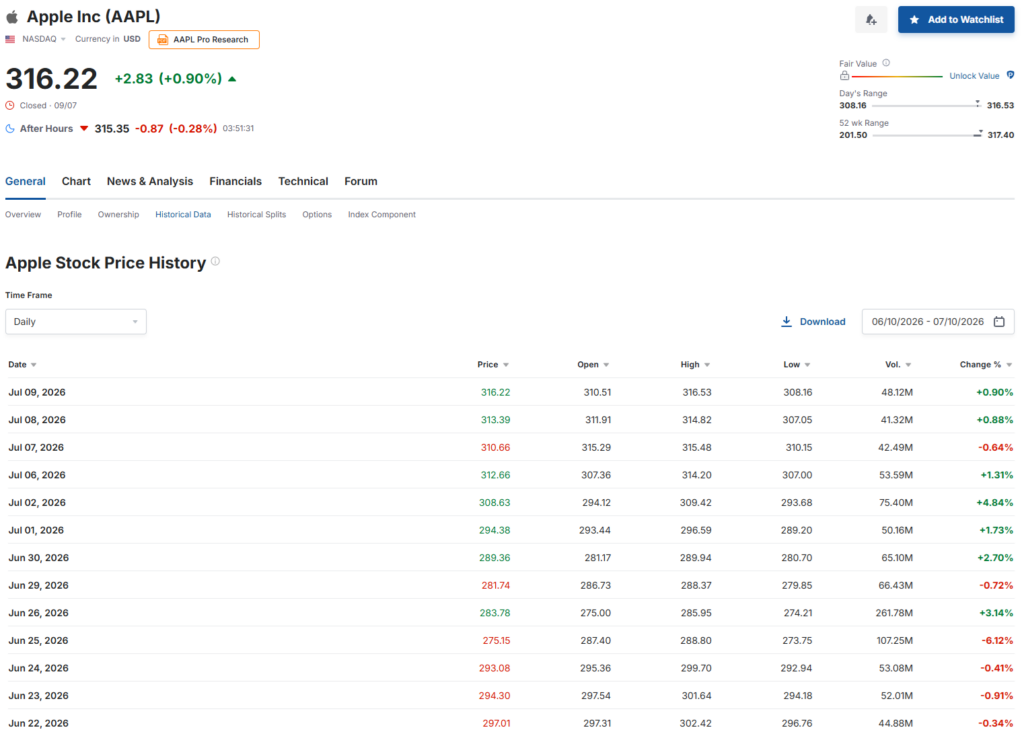
Heads up: some providers gate the download. On Investing.com, clicking Download while signed out opens a sign-up prompt — a free account is enough. You download the file yourself; FolioCenter never sees your provider login.
Reshape it to date,close
A typical export has several columns and month-name dates. Open it in a spreadsheet and trim it to the two columns FolioCenter reads, fixing the date format:
Date,Price,Open,High,Low,Vol.,Change %
"Jul 09, 2026",316.22,310.51,...
"Jul 08, 2026",313.39,311.91,...
date,close
2026-07-09,316.22
2026-07-08,313.39
- Keep only Date and Price (Price is the daily close); delete the rest.
- Convert dates to
YYYY-MM-DD. This is the one step you can’t skip. - Remove thousands separators from the price.
- Save as CSV.
Why only two columns? If you leave extra numeric columns in, FolioCenter’s upload guard reads the file as a split history (a date plus two numbers) and won’t accept it as prices. Two columns keeps it unambiguous.
Add the stock splits
Splits are the events that matter for a price series — they let FolioCenter reconstruct your true share count and draw a correct long-run chart. Most providers list them; on Investing.com it’s the Historical Splits tab.
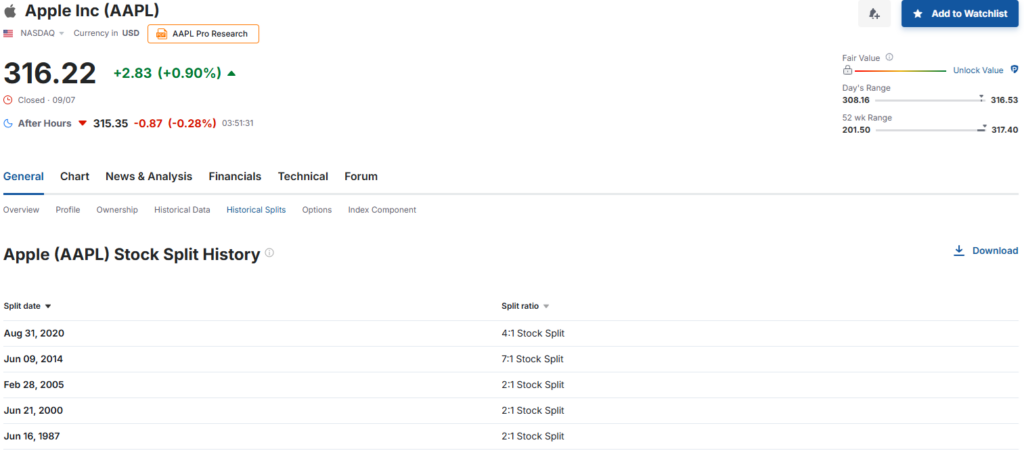
Build a second small CSV, one row per split, with the date as YYYY-MM-DD and just the ratio:
date,ratio
2020-08-31,4:1
2014-06-09,7:1
2005-02-28,2:1
If the security has never split, skip this file — just upload the price series.
About dividends
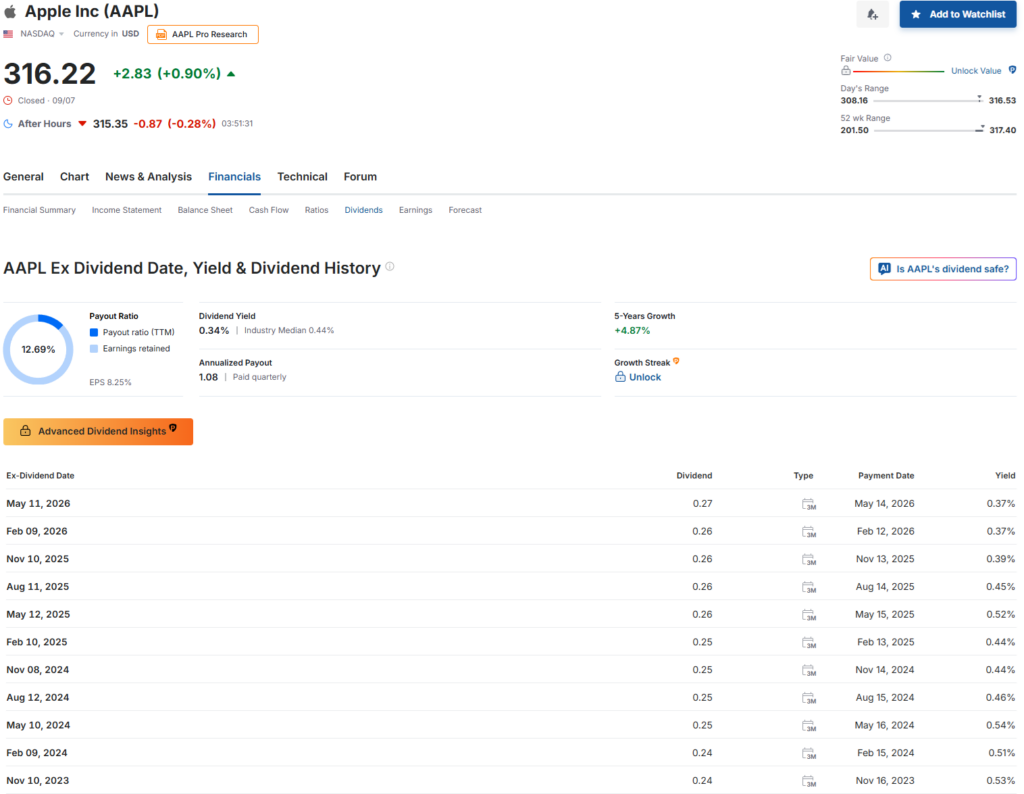
Your provider may also list dividends (Investing.com has a Dividends tab). Those are a handy cross-check, but in FolioCenter dividends are cash transactions on your account — not part of a price series. They arrive when you import a broker statement, or you add them by hand as a Dividend transaction. The manual-prices upload covers prices and splits only.
Upload into FolioCenter
- Find the quote-less holding — in a Watchlist, or in the Import summary when a broker import flags it. Click the $ button beside it.
- In the Manual prices dialog, drop your
date,closefile into Price series. - Drop your splits file into Split history (if you made one).
- Set the “Prices are split-adjusted” checkbox (see below), then click Upload.
The “split-adjusted” checkbox
Most providers, Investing.com included, publish split-adjusted history — past prices restated for later splits (that’s why old prices look small). Leave “Prices are split-adjusted” checked and attach the split history: FolioCenter converts the closes back to their as-traded values using exactly those splits, keeping share counts and returns correct. Only untick it if your file already holds raw, as-traded prices.
Troubleshooting
Your price file still has more than two columns (a date plus two or more numbers reads as a split). Trim it to date,close.
The dates weren’t recognised. Use YYYY-MM-DD; avoid US MM/DD/YYYY and month-name formats.
Those cells failed to parse — usually a thousands separator in the price (1,234.56) or a blank / “–” value. Clean the number column.
A split is missing from your split file, or the “split-adjusted” checkbox didn’t match your data. Re-check the splits and re-upload.
The security already has an official price feed — manual prices are only offered for genuinely quote-less securities.
Investing.com is an independent third party used here only as an example; check that your use of any provider’s data complies with its terms. Prices you upload are estimates you provide — FolioCenter stores and charts them but can’t verify their accuracy. This guide is about using the app and isn’t investment advice.